

Developer Console missing from your Salesforce Setup menu? You didn’t break anything, and it’s not a bug. It’s a side effect of Salesforce quietly rolling out a new default IDE called Web Console as part of Winter ’27, and once it’s turned on org-wide, Developer Console gets automatically hidden which is exactly why Developer Console appears missing even though nothing was actually removed.
It’s a two-minute fix, and Developer Console isn’t gone its just tucked behind a setting.
Here’s the exact situation this article addresses: you or a user go looking for Developer Console in the gear icon / Setup menu, where it’s always lived, and it’s simply not there anymore.
This has started showing up for orgs that already have Winter ’27 Preview and have had Web Console enabled, whether that happened intentionally by an admin or as part of an org-wide rollout.
Why This Is Happening: The Winter ’27 Web Console Rollout
Salesforce has been building a new browser-based IDE called Web Console a lightweight, embedded development environment designed to sit inside Setup and other Salesforce surfaces, rather than living as a separate destination the way Developer Console does. Salesforce’s own framing is that it bridges the gap between the legacy Developer Console and the heavier, more resource-intensive Agentforce Vibes IDE, aiming for a faster, more cost-effective, in-context experience.
Web Console opened for beta around April, 2026, and with Winter ’27 it’s being positioned as the new default in-browser IDE, gradually replacing Developer Console as the tool Salesforce points developers toward first.
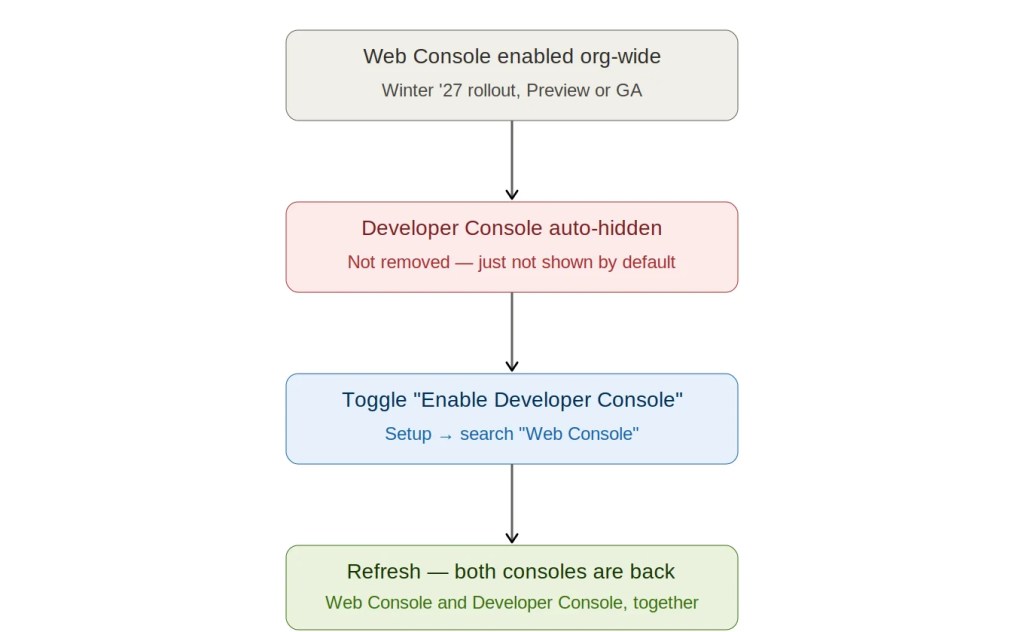
If you’re on a Preview sandbox already running Winter ’27, this is the most likely reason you’re seeing it first . The rollout has already started there, ahead of it reaching every production org.
The Fix: Bring Developer Console Back in 4 Steps
This is the exact fix for a Developer Console missing from Setup, and it takes under two minutes:
- Go to Setup.
- In the Quick Find / search box, search for Web Console.
- On the Web Console Settings page, find the Enable Developer Console to section and toggle it to Active.
- Refresh Salesforce.

Once you refresh, Developer Console reappears in the Setup gear menu, sitting right alongside Web Console . You don’t have to choose one or the other.
Here’s what that settings screen looks like once both toggles are active — note both Enable Web Console and Enable Developer Console show the green Active confirmation state:
If you’re managing this for a team rather than just yourself, this same toggle applies org-wide, flip it once as an admin, and every user in the org gets Developer Console back in their Setup menu without having to touch anything themselves.
Web Console vs Developer Console: What’s Actually Different
It’s worth understanding what you’re actually choosing between, since Salesforce clearly wants Web Console to become the default over time.
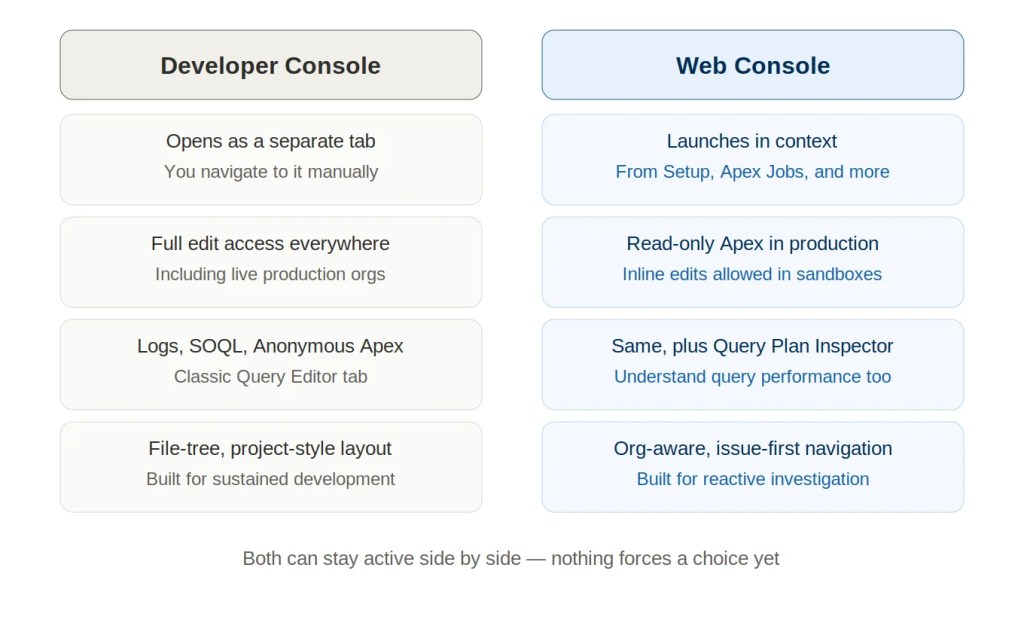
| Developer Console (Legacy) | Web Console (New, Winter ’27 default) | |
|---|---|---|
| Where it lives | Separate tab/window you open manually | Embedded — launches directly from Setup, Apex Jobs, and other context-rich entry points |
| Editing in Production | Full edit access | Read-only — inspect and understand code safely, no risk of live-org changes |
| Editing in Sandboxes | Full edit access | Inline edits and saves supported, as part of a faster path-to-fix workflow |
| Debug logs | Supported | Supported, with a more modern dedicated logs experience |
| SOQL execution | Supported via Query Editor tab | Supported, plus a Query Plan Inspector for understanding query performance |
| Anonymous Apex | Supported | Supported, runs directly in the browser |
| Context awareness | You navigate to it, then find what you need | Org-aware navigation — launches already pointed at the class, log, or job you came from |
| Design philosophy | Project-style IDE: file tree, multiple panes | Built for reactive, in-the-moment investigation: “something broke” → fix → validate, with less setup |
The production-vs-sandbox distinction is the one worth remembering: Web Console won’t let you directly edit Apex in a live production org — that’s a deliberate guardrail, not a missing feature. If your team is used to making live tweaks in Developer Console in production (worth a separate conversation about whether that’s a great habit in the first place), Web Console is going to feel more restrictive there by design.
Should You Switch to Web Console Now?
You don’t have to choose yet, and you shouldn’t disable Developer Console just because Web Console exists.
Both toggles can be active at the same time, and Salesforce’s own guidance treats this as a genuine transition period, not a forced cutover:
- Keep both active if your team still leans on Developer Console habits (production log inspection on the fly, muscle-memory keyboard shortcuts, existing saved queries) while your developers get comfortable with Web Console’s newer workflow.
- Try Web Console first for debugging Apex job failures — this is the scenario Salesforce built it around: start from a failed job, open the class in context, inspect logs, jump straight from a stack trace to the offending line, fix it, and re-run tests, all without leaving the browser tab you started in.
- Don’t rely on Web Console yet for direct production hotfixes — that’s exactly the read-only guardrail above. Keep your existing change-management process (sandbox → test → deploy) rather than trying to force a workaround.
Web Console is still in beta as of Winter ’27’s rollout, so treat it as “worth learning now, not yet your only tool.”
FAQ
Did Salesforce remove Developer Console?
No. Developer Console still exists and still works exactly as before. It’s automatically hidden from the Setup menu once Web Console is enabled org-wide, but a single toggle brings it back.
Why is Developer Console missing without any warning?
Because hiding it is the intended default behavior once Web Console is turned on for an org . Salesforce designed Web Console to be the new default entry point, and Developer Console steps out of the default view rather than being force-removed. If it caught you off guard, it’s likely because your org picked up Winter ’27 Preview, where this rollout has already started.
Is Web Console mandatory?
Not currently. As of the Winter ’27 rollout, Web Console is admin opt-in and off by default until enabled and even after it’s on, Developer Console can be switched back on right alongside it. There’s no forced cutover yet.
Can I edit Apex directly in Web Console in production?
No, by design. Apex editing in Web Console is read-only in production orgs, so you can inspect and debug safely without risk to live data or code. Inline edits and saves only work in sandboxes and other non-production environments.
Will this setting reset if there’s another release update?
Salesforce hasn’t indicated the Developer Console toggle will be forced back off in a future release, but since Web Console is still in beta, treat any beta-stage setting as something worth re-checking after major release upgrades (Spring, Summer, Winter) rather than assuming it’s permanent.
Where can I read Salesforce’s own documentation on this?
See the official Web Console Overview and the Introducing Web Console (Beta) announcement post, linked again below.
Author

Discover more from Trigger Hours
Subscribe to get the latest posts sent to your email.
1 thought on “Developer Console Missing From Setup? It’s Winter ’27’s Web Console Rollout — Here’s the Fix”